


Digital Banking

State of the Client Report Released
We are pleased to share our State of the Client report, which highlights recent Digital
Banking updates and scheduled enhancements, including expanded mobile deposit
capabilities, personal financial management tools, and in-app credit card management.
Recent Updates
October
Security features enhanced for Secure Access Code delivery. While less visible to users, these updates ensure our platform security is continually adapting to changing risks.
September
Getting Started Guide widget live in Busey Digital Banking, guiding new consumer users through key features during their first 30 days of online banking.
August
Busey Digital Banking Account display features are updated for consumer banking users, allowing them to swipe quickly between accounts. Additional security and privacy enhancements are applied.
July
BuseyEscrow and ZRent launched. These online tools streamline recurring payments management for businesses, part of our suite of Busey Payments products.
June
Busey Digital Banking launches, bringing legacy eBank users to our updated and streamlined banking platform, rebranded and refreshed with unique dashboards and tools catered to commercial, small business and consumer users.
May
Busey for Business platform enhancements go live, offering an online experience designed to meet the specific needs of business owners.

Download the free Busey Digital Banking app from your app store today!


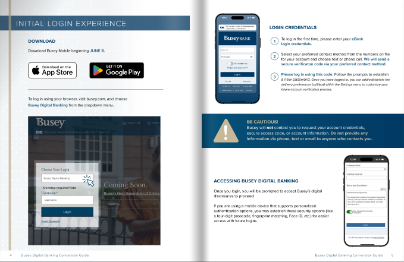
Looking for something? Check out Busey's Digital Banking Guide.
Navigate your online banking platform with ease.
Review the guide for login instructions, menu details, expected changes and more.
Click the image below to view the guide. Remember to check back periodically as the guide will be updated with new information as it becomes available.
Why is Busey updating the online banking system?
We are committed to continual improvement, and regularly update our tech to ensure we're providing our clients with secure, reliable tools.
Did you know our enhancements are informed by client feedback? Learn more in our State of the Client report.
How do I log in?
Please visit our Digital Banking Guide to see what the screens and specific steps will include.
Can I use biometric login?
If you are using a mobile device that supports personalized authentication options, you may establish these security options (like a four-digit passcode, fingerprint matching, Face ID, etc.) within Busey Digital Wallet for easier access with future logins. However, for your first login, you will need to enter your eBank username and follow the directions to authenticate.
What happens after I log in?
Once you have successfully logged in, you will be prompted to accept Busey’s digital disclosures to proceed. Then you will receive some pop ups to walk you through the new experience.
Does Busey Digital Banking have Zelle®?
Yes. When you open Zelle® for the first time, you will see a welcome screen to guide you through your account reactivation. Once verified, all your account information including payees, payment history and scheduled payments will be available. Please note that Zelle® is allowed for consumer accounts only. For business account services, we offer a variety of Treasury Management services catered to small businesses. Fill out our contact form and someone will be in touch to help you find the right solution for your needs.
How do I manage my loan payments?
Loan management tools are located under the Transfers & Payments menu option.
To make loan payments, click on Transfers & Payments > Loan Payment.
To advance your loan and transfer the funds to your Busey deposit account, select "Transfer Money."
Please note that some transfers may be subject to holds; review your disclosures for additional information.
Please note that principal-only loan payments can be made:
- from a Busey deposit account using Busey Digital Banking. To open a Busey deposit account, visit go.busey.com.
- from a non-Busey deposit account using Loan Pay, available at busey.com/LoanPay.
Were my scheduled transfers affected?
Account transfer transaction history includes transactions from June 2025 through the present day.
Only transfers scheduled by you through online banking are visible under the Transfers & Payments menu (and submenus) of Busey Digital Banking. Below are a few examples of items you may be used to seeing in the transfers window, that you now need to view by reviewing your account's transaction history:
- Recurring transfers scheduled by a joint account holder
- Mortgage and loan payments requested through signed documents at your loan closing
- Payments you requested from your banker, such as a regular ACH transfer from your savings to your checking
How do I update my User ID?
- Busey Digital Banking App: Once logged in, tap on the Menu Icon in the lower right-hand corner. From the pop-up menu, choose Settings then Update User ID from Security to update your User ID.
- Busey Digital Banking on your internet browser: Log in. On the Dashboard, click Settings in the menu that appears. From the Settings screen, choose Update User ID from Security to update your User ID.
How do I connect my Intuit product (Quickbooks, Quicken, etc.)
Complete instructions are available at busey.com/intuit.
Can I increase the contrast in the font?
Yes! Under Settings, select Accessibility, and then check the box to Enable high contrast mode.
Where are my notes and tags?
Unfortunately this feature is not available in Busey Digital Banking. We apologize for the inconvenience.