


Digital Banking
Download the free Busey Digital Banking app from your app store today!



Busey's Digital Banking Guide is Here!
Prepare to navigate your new online banking platform with ease.
Review the guide for login instructions, menu details, expected changes and more.
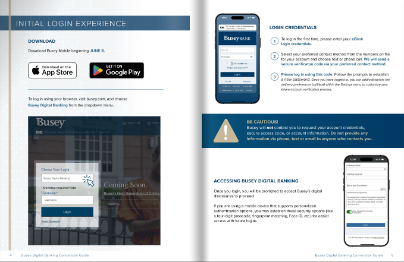
Click the image below to view the guide. Remember to check back periodically as the guide will be updated with new information as it becomes available.
In addition, you can find details about specific changes below.
Why is Busey updating the online banking system?
We are committed to continual improvement, and our improved online banking system offers a better experience for our clients, both at launch and in the future.
What do I need to do?
Download the Busey Mobile app from the Apple Store or Google Play. We recommend you manually delete the old app (Busey-Mobile) from your phone. You can tell the apps are different by looking at the hyphen - the new Busey Mobile app does not have a hyphen.
How do I log in?
Please visit our Digital Banking Guide to see what the screens and specific steps will include.
How can I update my phone number or switch to receiving the code via text?
Once you have logged in, you can add/edit/delete the delivery preferences (call/text) within the Settings menu to customize your future account verification process. If you are not receiving the code, please contact our Customer Care team using the chat bubble in the bottom right-hand side of your screen, or by calling 800.67BUSEY.
Can I use biometric login?
If you are using a mobile device that supports personalized authentication options, you may establish these security options (like a four-digit passcode, fingerprint matching, Face ID, etc.) within Busey Digital Wallet for easier access with future logins. However, for your first login, you will need to enter your eBank username and follow the directions to authenticate.
What happens after I log in?
Once you have successfully logged in, you will be prompted to accept Busey’s digital disclosures to proceed. Then you will receive some pop ups to walk you through the new experience.
Will my scheduled Bill Pay payments be affected?
No. There are no functional changes to your Bill Pay experience. Your payees, scheduled payments, payment history, and recurring payments in Bill Pay will process normally and be transferred into the new system.
Does Busey Digital Banking have Zelle®?
Yes. When you open Zelle® for the first time, you will see a welcome screen to guide you through your account reactivation. Once verified, all your account information including payees, payment history and scheduled payments will be available. Please note that Zelle® is allowed for consumer accounts only. For business account services, we offer a variety of Treasury Management services catered to small businesses. Fill out our contact form and someone will be in touch to help you find the right solution for your needs.
How do I manage my loan payments?
Loan management tools are located under the Transfers & Payments menu option.
To make loan payments, click on Transfers & Payments > Loan Payment.
To advance your loan and transfer the funds to your Busey deposit account, select "Transfer Money."
Please note that some transfers may be subject to holds; review your disclosures for additional information.
Please note that principal-only loan payments can be made:
- from a Busey deposit account using Busey Digital Banking. To open a Busey deposit account, visit go.busey.com.
- from a non-Busey deposit account using Loan Pay, available at busey.com/LoanPay.
You may notice minor differences in the look and feel of the screens and experience.
Were my scheduled transfers affected?
Your scheduled transfers, payees, and payment history were moved into the new system and process normally.
Account transfer transaction history includes transactions from June 2025 through the present day.
Only transfers scheduled by you through online banking are visible under the Transfers & Payments menu (and submenus) of Busey Digital Banking. Below are a few examples of items you may be used to seeing in the transfers window, that you now need to view by reviewing your account's transaction history:
- Recurring transfers scheduled by a joint account holder
- Mortgage and loan payments requested through signed documents at your loan closing
- Payments you requested from your banker, such as a regular ACH transfer from your savings to your checking
How do I update my User ID?
- Busey Digital Banking App: Once logged in, tap on the Menu Icon in the lower right-hand corner. From the pop-up menu, choose Settings then Update User ID from Security to update your User ID.
- Busey Digital Banking on your internet browser: Log in. On the Dashboard, click Settings in the menu that appears. From the Settings screen, choose Update User ID from Security to update your User ID.
How do I reconnect my Intuit product (Quickbooks, Quicken, etc.)
Complete instructions are available at busey.com/intuit.
Can I increase the contrast in the font?
Yes! Under Settings, select Accessibility, and then check the box to Enable high contrast mode.
Where are my notes and tags?
Unfortunately these could not be migrated to our new system. We apologize for the inconvenience.
What if I was already using Busey Wallet?
If you had Busey Wallet and eBank usernames, you will now have two profiles in Busey Digital Banking. To remove one, please contact us.
Looking for something?
- Subscribe to Busey's In the Know emails delivered each week to ensure you receive important updates at your preferred email address.
- View past In the Know newsletters